Request translation in Smartling
To manually request Intercom assets for translation, open your Intercom Connector project in Smartling and navigate to the Intercom tab.
From this page, there are two ways to request translation:
-
Select asset(s) > Request Translation.
This option allows you to bulk-select multiple assets for translation.
-
Click the information icon for an asset > Request Translation.
This option allows you to request translation for a single asset.
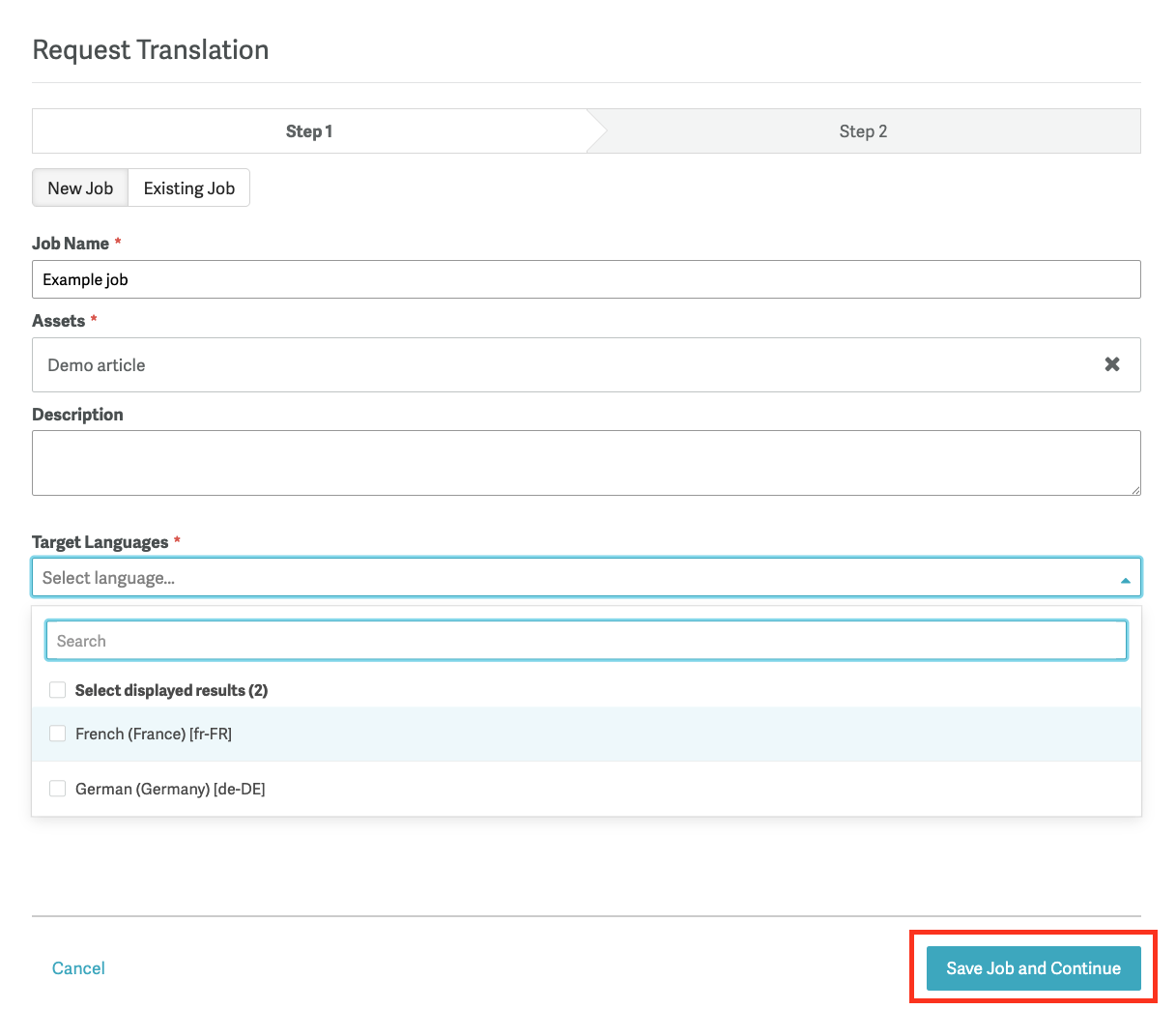
Both methods will open the two-step Request Translation wizard:
Step 1
- Choose to create a New Job or add the content to an Existing Job.
- Under Assets, ensure the assets selection is correct. Click the X to remove any asset listed.
- (Optional) Add a description for linguists.
- Select the Target Languages.
- Click Save Job and Continue to create the job in Smartling.
Step 2
- Here you can see a cost estimate for the job based on your selected workflows.
- If you edit the workflow(s), the estimate will update automatically.
- (Optional) Add a Job Due Date.
-
Select Save for Later, to create the job, but have the content sit in Awaiting Authorization. Select Authorize Job, to kick off the translation process.
We recommend selecting Save for Later, so you can review the strings in the job before authorizing it for translation.
Automate job creation
The above steps outline how to request Intercom content for translation manually. For information on how you can automate job creation, see our documentation on Automation Rules For Connector Content Translation.
Translation delivery to Intercom
The connector is file-based, meaning translation progress is tracked at the file level rather than the job level. When you request an Intercom asset for translation, the content is bundled into a JSON file and sent to Smartling for translation. Once the file is fully translated for a target locale, the translations for that locale are automatically delivered back to Intercom.
Learn more about translation delivery in our Connectors 101 article.
You can also trigger translation delivery manually at any time. To export translated content from Smartling to Intercom:
- From your Intercom project, click the Intercom tab
- Click the info icon to open the Asset Details page
- Click Export to export translations for a single language, or Export All to export translations for all languages.
Check translation progress
You can check the translation status of any asset via the Asset Details page, by clicking the info icon next to an asset in the Intercom tab.
The Delivered column shows the date when translations were last delivered to Intercom. The state Completed means all content is translated and was successfully delivered back to Intercom. For more details on the different states please see the info here.
Hover over the requested date to view the exact time the asset was requested and by whom. Similarly, hover over the delivered date to see the exact time the asset’s translations were delivered.
Viewing translations in Intercom
You can view translated articles directly in your Intercom content list. Translated articles display language code labels indicating the available language versions.
Click the language code label to view the translated articles. Then, click a title to open an individual translated article.
From within an individual article, you can also switch languages using the dropdown menu to view other translated versions of the article.
Important considerations
If the name of a collection is not translated, it will not appear on the localized home page of your Help Center. Each collection must also include at least one translated article to be visible in the localized Help Center. After translating a collection, be sure to add translated versions of any sub-collections.
Sub-collections without translations will not appear in the localized Help Center, but any translated articles within them will still be visible. Refer to the Intercom documentation for more details.
Adding or editing translations
Translations should not be added directly in Intercom, as the connector does not recognize translations added manually. If your team adds translations directly, they will be overwritten when the connector delivers translations.
If you need to edit translations after they have been delivered to Intercom, all edits should be made in Smartling. The connector does not track or recognize changes made directly in Intercom. Any edits made in Intercom will be overwritten the next time the connector delivers translations for the asset. To ensure changes are preserved, always make edits in Smartling.
Visual context
By default, the connector generates simplified dynamic HTML visual context. The connector generates a simple HTML file that renders the Intercom fields and their values, providing a basic representation of the asset's content. An example of this can be seen below.
If you are interested in integrating an additional visual context tool, such as adding context via an API integration or Smartling's Context Capture JavaScript Library please reach out to your Solution Architect or another Smartling representative.